General Information

The streaming page is only for desktop browsers, however streams can be viewed on most desktop and mobile devices using the chrome based browsers, firefox and safari.

This application can only create streams from sources available to your browser, such as a webcam, display capture device, or a virtual camera source such as NDI or OBS Virtual camera.

You must allow your browser to access your webcam and microphone to use this application, see your browser settings if you are prompted.

For more information on browser permissions, click here.


Creating a session

Create Stream
These are the minimal options for creating a session and broadcasting a stream.

1 Project Name

You can name your sessions if you plan to re-use session setting, for multi day events.

Clients will see the project name on the bottom right of their viewer.

2 Resolution

The maximum resolution of the main stream that will be created. Although streams may start out smaller they will ramp up as connections stabilize over a few seconds.

Currently supported are full HD 1080P and 720P, this will attempt to limit the capture device to the selected resolution not just the encoded stream resolution. Resolution requests are "soft" so hardware may override.

A higher resolution will require a more powerful machine to encode, this is changeable later in the session.

3 Quality

This is the maximum quality of the main stream that will be created, although streams may take some time to ramp-up to the full bitrate, as the connection is created, framerate is prioritised and bit rate is increased incrementaly.

Equivalent bitrate values are High : 16Mbps, Med : 8Mbps and Low : 4Mbps.

This is changeable later in the session.

4 Video Source

This is the source of the video for the main stream you wish to publish.

Normally this would be a the video output of your editing or comping application looped back to a capture device, or a virtual camera source such as NDI or OBS Virtual camera.
Note: RPXL does not support Blackmagic or AJA capture devices as they do not present themselves to the browser as a webcam source.

This is changeable later in the session.

5 Audio Source

This is the source of the audio for the main stream you wish to publish.

Normally this would be a the audio output of your editing or comping application looped back to a capture device, or a virtual audio source such as NDI or OBS Virtual camera.

This is changeable later in the session.

6 More setting button

Will display setting that allow you to add a microphone or camera to present yourself, see the following section for more information.

7 Previous projects

Will show a list of previous sessions created on this machine, see the Previous projects section for more details.

8 Video source preview

Preview of the video source you have selected, this may be cropped in the preview but the entire device will be captured and streamed.

9 Audio source VU Meter

Live preview VU of the audio source you have selected.

A Start session

Will create a live session with the settings you have selected.

You can create a session without a video or audio source and add them later, pretty much all setting can be changed via the settings menu.


More settings

More settings (user settings)
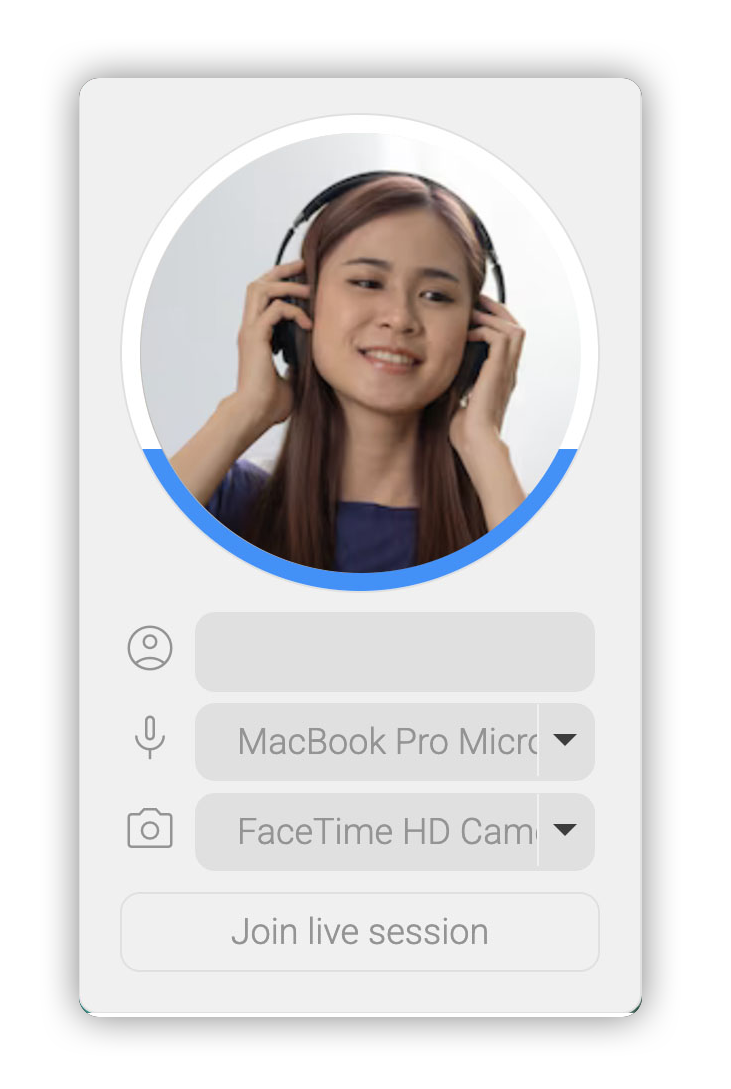
These are optional settings that allow you to add a microphone or camera to present yourself in a room.

1 Name

Your name, this will be displayed in the room for other participants to see. If you do not enter a name it will default to "(host)" on the clients side.

2 Camera

An optional camera source that will be used to present yourself in the room.
This is separate from the main stream and can be turned off or changed during the session.

3 Microphone

An optional microphone source that will be used to talk to others in the room.
This is separate from the main stream and can be muted or changed during the session.

4 Camera preview

Preview of the camera you have selected.

5 Microphone VU Meter

VU Meter of the currently selected microphone.


Main Interface

Main interface
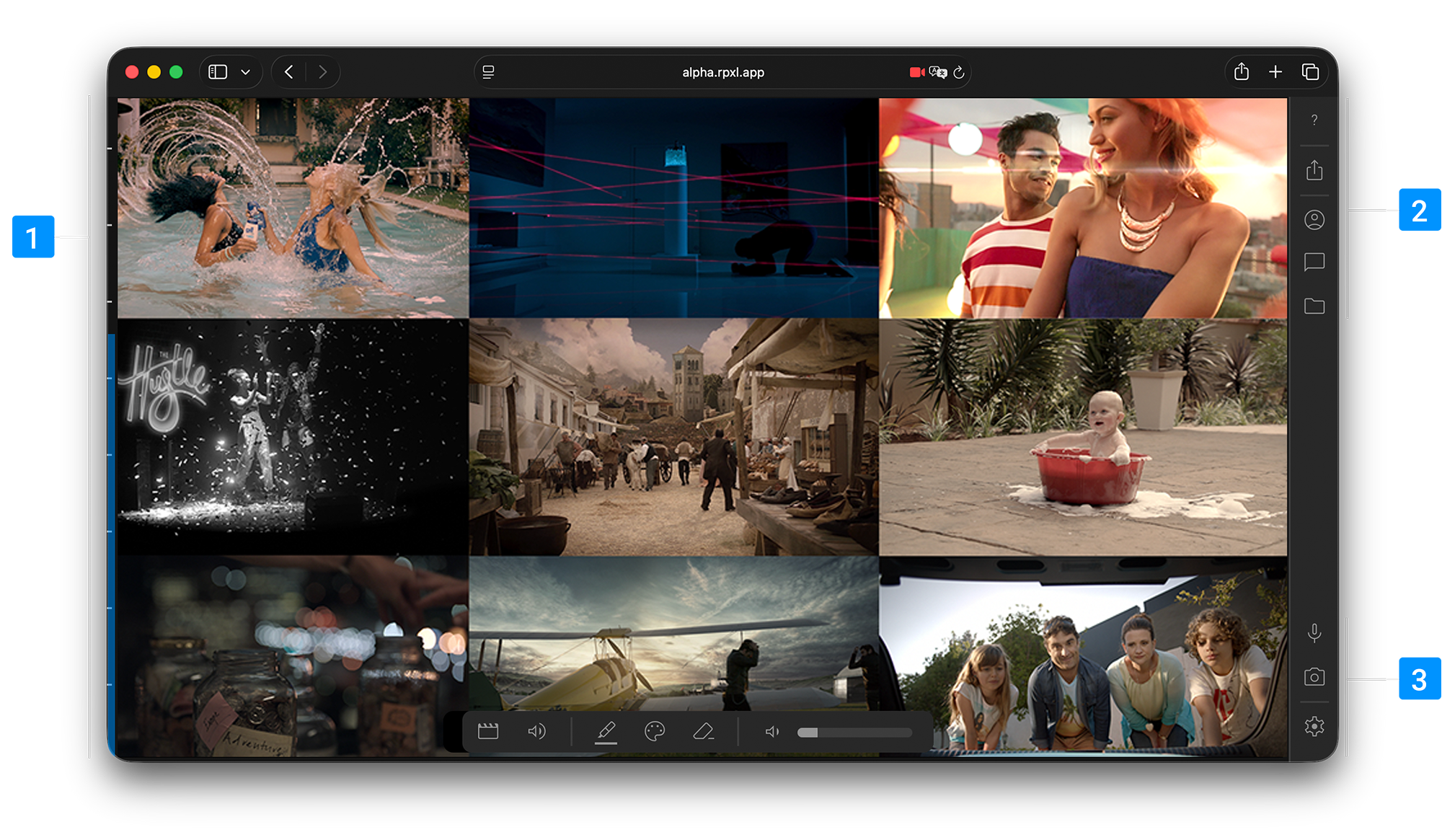
The main interface is divided into two main sections, users are listed on the left and the main stream is to the right.

1 Share menu (host only)

Allows you to share a link to the session with your clients, the link is copied to you clipboard and can be pasted into any messaging app.

There are 2 options available.

A main share link, that will enable full comms with clients. Clients will be prompted to enter a username and optionaly to select a microphone and camera. They will be able to markup the main stream and chat with you within the application.

A quick share link, that will allow clients to view the main stream without prompting them for microphone, camera or username. This is useful for clients who just want to watch the stream without interacting, or if you already have them on another communication app and want to quickly share with them. There is almost no interface but clients can still zoom in and see markups.

2 Connected users

List of connected users. Hover over to show user names (collapsed by default).
You will appear in this list as "(host)" if you have not added your name in the more settings section. If you have selected a Camera source, you will appear in the circle, otherwise a placeholder image will appear.

The Host is always first in the list, followed by the local user and below the other guests.
Guests with a white outline have a microphone and it is on, red, their microphone is muted and those without an outline have selected not to connect a microphone.
Users that appear as (QS)_XXXXXXX have joined via the quick share option and have not connected with a microphone or camera although they will still hear the main stream and the room.

3 Settings menu

Allows you to change any of the settings including the project name, resolution, quality, video and audio source of the main stream.
See the Creating a stream section for more details.

Also allows you to change your username, camera and microphone settings
See the More settings section for more details.

4 User device quick mute

Allows you to mute your microphone or camera with one click.
Guests will still hear the main stream and be able to chat amongst themselves.

Note : this option will be disabled if you have not selected a microphone in the more settings section.

5 Main stream "Blind" and mute controls (host only)

If you have selected a main video and audio source, special icons will appear next to the markup controls that allow you to "blind" the main stream (turn it off for users) and to mute the main stream for all users, this is useful if you need to try something or want to playback mute. These controls do not affect the user audio or video streams.

Note : the Blind and mute buttons will only appear if you have selected a video and audio device.

6 Markup

Markups allow you to draw on the main stream for guests to see.

Tools are, the Marker, to draw on the main stream. A pallet to select different colours for the marker and an eraser that will clear the canvas.
The cursor will change to a crosshair when over the main stream allowing you to draw and annotate.

Drawings by guests will be also be visible to all.
Drawings are limited to the size and aspect of the main stream and are not saved or recorded to the stream.

A user can erase only their own markups but the host can erase all markups.

These tools will only appear if you have selected a video source, if you change sources the markups will remain and resize to the new source.

Any guests that join late will see the latest markups.

7 Main Stream local volume

Adjusts the local volume of the main stream, it does not affect any other users, or user volume, only local the local volume of the main stream.

This control will only appear if you have selected an audio source.

8 Quit menu (host only)

Will end the stream and disconnect you from the session.

Note : clients will not be removed from the session and can continue to chat. The session will continue to exist until the last user disconnects.
To reconnect to session if you have quit prematurely you will need to use the previous projects drop down.


Misc

Not having a central server introduces some benefits and some gotcha's that bear thinking about when using the application.

As all Guests are connecting directly to your machine and not a central server we recommend using wired ethernet. Wifi has inherit latency issues which will disrupt the stream. If you are having issues with sync or dropped frames try this first.

Your host PC must be able to encode and transmit the video in real time while you are working (although this can be offloaded to another machine), a modern CPU & GPU is essential. This app has been tested on modern Macs and although RAM is not an issue the more cores, the better.

Every extra guest that connects will increase the load on the hosts workstation, with a modern system and GPU, rooms of about a dozen people should be doable.

Guests connect at a very low resolution and very little bandwidth, typically under 80kbps per user, the majority of your bandwidth is prioritised to the main stream.

Guests are also connected directly peer to peer to one another so you do not need to process their audio or video locally to retransmit.